How to convert PNG to SVG Converter online
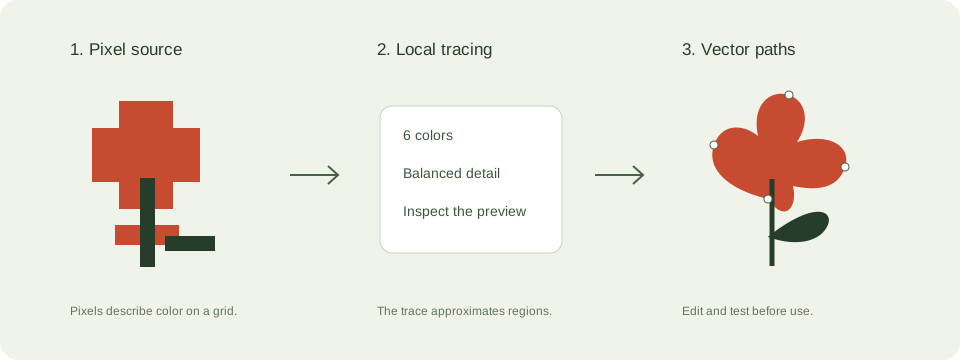
- Upload your PNG, JPEG, JPG, WebP image by drag and drop, browse, paste from clipboard, or image URL import.
- Choose the most relevant preset for this use case, or start with the preselected settings on this page.
- Adjust colors, smoothness, detail, background handling, and SVG optimization.
- Preview the SVG, check the conversion score, then download a single SVG or batch ZIP.
Best settings for PNG to SVG Converter
PNG to SVG Converter Use fewer colors and simpler paths for logos, icons, signatures, sketches, Cricut files, and fast website graphics. Use more colors and detail when the source is a real photo or a detailed illustration.
The embedded converter starts with icon preset when that is the most relevant choice. You can still change every setting before conversion.
Transparent PNG settings
Keep transparent background enabled and simplify paths so the main silhouette stays clean without extra background shapes.
Compact PNG icons
Use Icon or Ultra Light for app icons, UI graphics, and symbols that need small SVG files.
Why PNG is often a strong source for SVG conversion
PNG files usually trace more cleanly than JPEG files because they can preserve sharp edges and transparency without compression blocks around the subject. That makes PNG a strong starting format for logos, icons, sticker artwork, badges, social graphics, and product marks that need a vector version for the web or print.
A transparent PNG can be especially helpful because the converter does not need to fight a baked-in background. If the subject already sits on a transparent canvas, the SVG result is often easier to optimize and easier to reuse in design software, page builders, craft tools, and storefront listings.
Best settings for transparent graphics, icons, and stickers
For transparent logos and icons, start with Icon or Clean SVG and keep the color count conservative. Small interface graphics do not need dozens of colors. Fewer shapes usually mean a cleaner path structure, a smaller download, and a file that behaves better when resized in CSS or dropped into a no-code builder.
Sticker artwork and layered product graphics may need a little more detail than an icon, but the same principle applies. Begin with a simple trace, review the path count, and only raise detail when the edges really need it. This approach keeps the output manageable and avoids turning soft shadows or glow effects into hundreds of unnecessary paths.
Problems that appear with PNG to SVG conversion
Soft shadows, glows, semi-transparent pixels, and textured overlays can still make a PNG trace heavily. A file can be transparent and still be too complex for an efficient SVG. If the result looks crowded or too large, lower colors, increase smoothness, and remove decorative effects from the raster file before trying again.
Another common issue is exporting tiny app icons and expecting perfect vector geometry. Very small raster icons do not contain much information. The safest workflow is to start with the largest source available, then use the preview to confirm that corners, curves, and spacing still look intentional after tracing.
When to use PNG to SVG instead of keeping the PNG
Choose SVG when you need crisp scaling, easy recoloring, or a reusable vector asset for a logo system, UI library, landing page, or print layout. SVG is also useful when a design team wants to fine-tune the output later in Figma, Illustrator, or Inkscape.
Keep the PNG when the image depends on photo-like shading, raster texture, or pixel detail that would not benefit from tracing. This page helps you test that boundary quickly by showing the result quality and file-size tradeoff before you publish the final asset.
Common problems
Automatic vector tracing is powerful, but it works best when the source has clean shapes and limited colors.
- Soft shadows and glow effects can create many paths.
- Semi-transparent pixels may trace as extra shapes around edges.
Tips to improve output
A better source image almost always creates a better SVG. Clean SVG works well for most downloads, Editable SVG helps designers, and Ultra-light SVG helps when file size matters.
- Use a high-resolution PNG with crisp edges for the best vector trace.
- Remove decorative backgrounds before converting when you only need the subject.
JPEG vs SVG comparison
| Format | Best for | Scaling | Editing |
|---|---|---|---|
| JPEG/JPG | Photos and complex raster images | Can pixelate when enlarged | Pixel editing |
| SVG | Logos, icons, cut files, print graphics | Scales without pixelation | Path and shape editing |
Features
- Live vector preview: Preview the SVG result before downloading, zoom into paths, and compare before and after with a slider.
- Conversion score: See a practical score based on path count, output size, colors, smoothness, and SVG usability.
- SVG optimizer: Compress markup, simplify paths, add metadata, and prepare cleaner SVG files for web, Cricut, and print use.
- Batch ZIP workflow: Convert multiple images and download the SVG outputs as a single ZIP on Pro and Agency plans.
- AI settings assistant: Use smart presets and metadata generation for logos, photos, icons, illustrations, and cutting machines.
- API access: Agency users can create API keys and integrate image-to-vector conversion into product workflows.