
2026-07-13
Convert Image to SVG for Vinyl Cutting: 2026 Guide
Vinyl cutting requires clean outlines and solid shapes. Learn how to convert any image into a cut-ready SVG file that cuts smoothly and weeds easily.
Written and reviewed by
Shahab Uddin, Founder & Product Lead. Shahab built JPEGtoSVG.com and reviews the site's conversion guides, presets, and SVG quality advice.
Quick Answer
- Vinyl plotters and craft cutters follow vector paths to cut adhesive vinyl. A good vinyl SVG must have closed shapes, zero overlapping lines, and minimal anchor nodes.
- Upload your image to JPEGtoSVG.com, select the 'Cricut' or 'Logo' preset, set the color count to 2, and turn on 'Remove Background'.
- Verify the cut paths in Silhouette Studio or Cricut Design Space. Ensure the design is simplified so that weeding (removing excess vinyl) is easy.
Table of contents
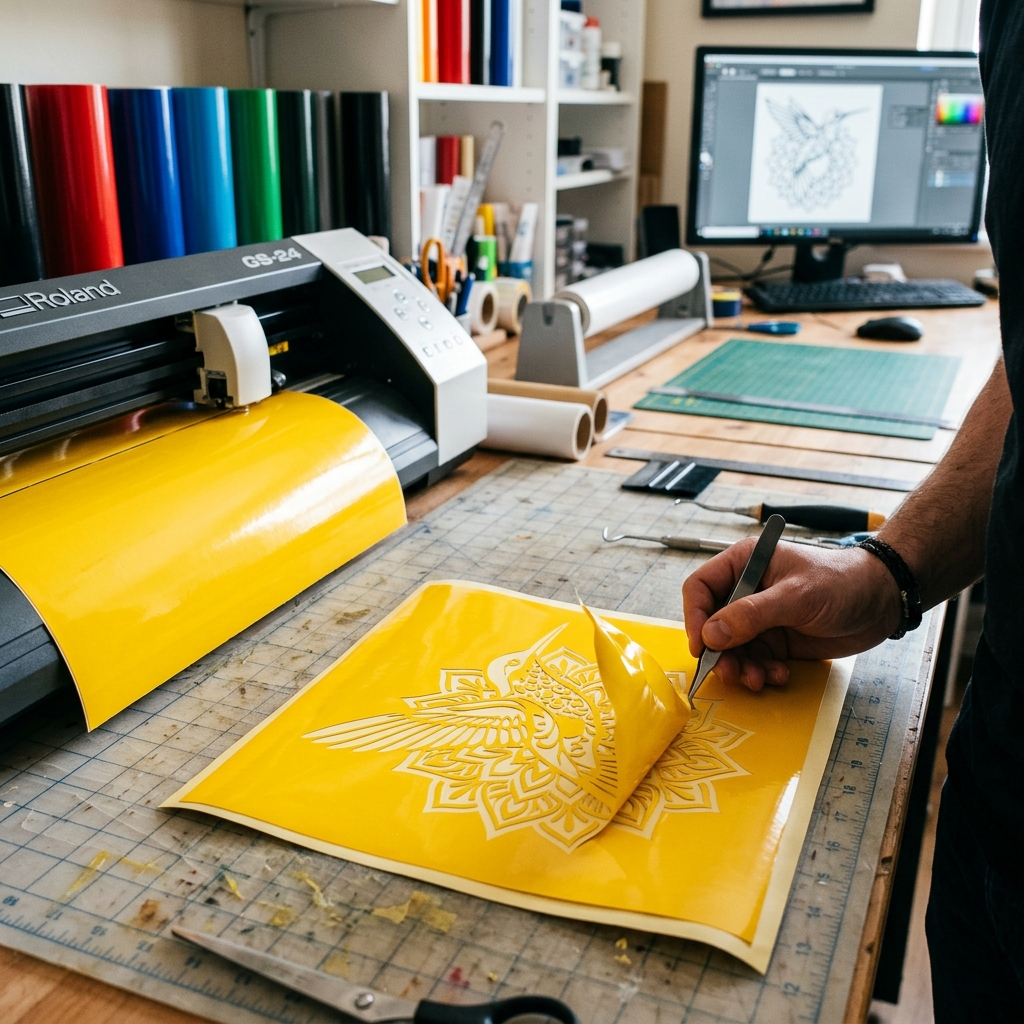
Vinyl crafting—whether you are making car decals, t-shirts with heat transfer vinyl (HTV), or signs—requires vector files. Unlike printers, a vinyl cutter follows the exact outline of a path to slice the vinyl sheet.
If you try to cut a regular JPEG or PNG, the cutter may cut jagged edges or slice your vinyl to shreds. This guide shows how to convert images into clean, cut-ready SVG files that weed smoothly.
What makes a vector file 'cut-ready'?
A cut-ready SVG is different from a web graphic. For vinyl cutting, the machine blade follows the borders of your vector paths. If your SVG has double overlapping paths, the blade will cut the same line twice, ruining the adhesive vinyl.
Furthermore, complex textures or tiny details create tiny cutouts that are nearly impossible to weed (the process of peeling away excess vinyl). A clean silhouette with unified shapes is the standard for vinyl work.
Step-by-step: convert image to vinyl SVG
Follow this workflow to create clean cut files for Silhouette or Cricut machines:
1. Use a simple, high-resolution graphic with flat colors.
2. Upload the file to JPEGtoSVG.com.
3. Select the 'Cricut' preset. This automatically simplifies paths, reduces colors, and optimizes curves.
4. Enable 'Remove Background' to ensure the vinyl cutter doesn't cut a square border around the logo.
5. Click Convert, check the output preview, and download the SVG.
Optimizing the SVG for easy weeding
Weeding is the physical labor of decal making. If you have thin fonts or tiny loose objects, they will tear and lift off the backing sheet during weeding.
Before cutting: open your SVG in design software and thicken thin lines. Merge overlapping shapes using the Weld or Pathfinder > Unite tool so the machine cuts a single continuous outer border instead of multiple intersecting pieces.
Tips and best practices
- For single-color decals, convert to a strict 2-color black-and-white vector. It is much easier to import.
- Always set your paths to fill instead of stroke in Cricut Design Space unless you are drawing with a Cricut pen.
- Use high-quality, name-brand vinyl (like Oracal 651) to ensure thin vector details cut cleanly without lift-off.
Common mistakes to avoid
- Tracing a highly detailed photo. This creates thousands of tiny vector islands that are impossible to weed.
- Leaving overlapping layers. If a blue circle is placed on top of a red square, the blade will cut the square underneath, slicing through your project.
- Leaving paper grain or scan dust, which creates tiny cuts that dull your blade and tear the vinyl sheet.
Conclusion
Converting images to vinyl-ready SVGs is simple once you understand that the cutter reads paths, not pixels. By selecting the Cricut preset, welding shapes, and avoiding tiny details, you can cut vinyl decals with clean edges.
Get your vector file, load your vinyl, and start cutting.
FAQ
Can Cricut cut a regular JPG image?
Yes, you can upload JPEGs to Design Space, but you must manually erase backgrounds, and the cut lines are often jagged. Converting the JPG to SVG beforehand gives much cleaner, professional results.
What is the best file type for vinyl cutting?
SVG is the best format because it preserves scalable, smooth cutting paths and layers that can be scaled to any decal size without distortion.
What does 'welding' mean for a vinyl SVG?
Welding merges overlapping vector shapes into a single outline, preventing the cutter from slicing lines inside your design.