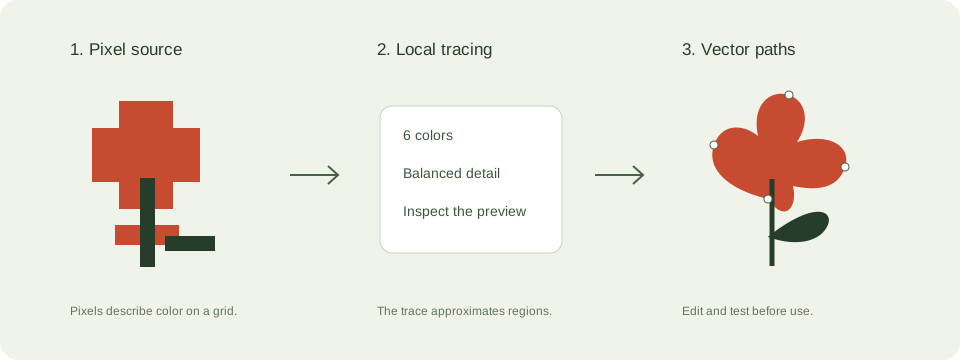
How to convert SVG for Cricut online
- Upload your JPEG, JPG, PNG, WebP image by drag and drop, browse, paste from clipboard, or image URL import.
- Choose the most relevant preset for this use case, or start with the preselected settings on this page.
- Adjust colors, smoothness, detail, background handling, and SVG optimization.
- Preview the SVG, check the conversion score, then download a single SVG or batch ZIP.
Best settings for SVG for Cricut
SVG for Cricut Use fewer colors and simpler paths for logos, icons, signatures, sketches, Cricut files, and fast website graphics. Use more colors and detail when the source is a real photo or a detailed illustration.
The embedded converter starts with cricut preset when that is the most relevant choice. You can still change every setting before conversion.
Cricut preset
Cricut mode uses low colors, high smoothness, stronger noise reduction, and black-and-white vector settings for cleaner cut-friendly shapes.
Cut file simplicity
The best Cricut SVG is not always the most detailed one. Cleaner shapes are easier to import, resize, and cut.
What Cricut users need from an SVG
Cricut projects care more about clean cut paths than visual realism. A cutting machine does not need every shade from the original image. It needs clear boundaries, predictable layers, and shapes that can be resized without turning into fragile edges or dozens of tiny islands. That is why Cricut SVG conversion is a distinct workflow, not just a generic image export.
If you sell decals, make shirts, build holiday crafts, or prepare layered paper projects, the quality of the vector path directly affects how easy the design is to weed, transfer, and cut. This page is built around that outcome, with settings that favor smoother lines and simpler shapes over photo-like detail.
Best settings for Cricut Design Space imports
Start with the Cricut preset and keep the color count low. Black-and-white output often works best for single-material projects because it removes unnecessary layers and makes the final cut easier to manage. If the design will use multiple vinyl colors, keep the palette small and verify that each area still reads clearly in the preview.
Noise reduction and path simplification matter more here than on many other converter pages. Small speckles, background dust, and photo texture can all become stray cut paths. A simpler SVG may look less detailed on screen but perform much better inside Design Space and on the cutting mat.
Common Cricut problems and how to avoid them
The biggest problem is importing a design that contains too many tiny disconnected shapes. This can slow down Cricut Design Space, create unexpected cuts, and make the final material hard to weed. If the preview looks busy, lower detail, lower colors, and try again before downloading.
White background boxes are another common issue. When a source image is saved on a white canvas, that white rectangle can turn into a cut layer unless you ignore or remove it during conversion. Always check the edges in the preview and make sure only the subject remains.
Use cases for Cricut-friendly SVG files
This workflow is ideal for vinyl decals, sticker outlines, simple logo marks, monograms, wedding signs, shirt graphics, holiday crafts, paper cuts, and classroom projects. High-contrast artwork, signatures, and bold silhouettes typically perform better than detailed photos.
For sellers and hobbyists alike, the real goal is reliability. A clean SVG saves time during cutting, assembly, and customer support because the design behaves predictably when resized, layered, or shared with another machine owner.
Common problems
Automatic vector tracing is powerful, but it works best when the source has clean shapes and limited colors.
- Too many tiny paths can make Design Space slow or difficult to cut.
- White backgrounds may import as unwanted rectangles.
Tips to improve output
A better source image almost always creates a better SVG. Clean SVG works well for most downloads, Editable SVG helps designers, and Ultra-light SVG helps when file size matters.
- Use black-and-white vector mode for single-layer cut files.
- Reduce colors before downloading when the design is too complex.
JPEG vs SVG comparison
| Format | Best for | Scaling | Editing |
|---|---|---|---|
| JPEG/JPG | Photos and complex raster images | Can pixelate when enlarged | Pixel editing |
| SVG | Logos, icons, cut files, print graphics | Scales without pixelation | Path and shape editing |
Features
- Live vector preview: Preview the SVG result before downloading, zoom into paths, and compare before and after with a slider.
- Conversion score: See a practical score based on path count, output size, colors, smoothness, and SVG usability.
- SVG optimizer: Compress markup, simplify paths, add metadata, and prepare cleaner SVG files for web, Cricut, and print use.
- Batch ZIP workflow: Convert multiple images and download the SVG outputs as a single ZIP on Pro and Agency plans.
- AI settings assistant: Use smart presets and metadata generation for logos, photos, icons, illustrations, and cutting machines.
- API access: Agency users can create API keys and integrate image-to-vector conversion into product workflows.