
2026-07-27
Convert JPG to SVG on Mac Free: Safari, Terminal & Preview Vector Workflow
macOS does not have a native raster-to-vector tracer in Preview. Learn how to convert JPG images to SVG files on Mac using free browser tools and terminal utilities.
Written and reviewed by
Shahab Uddin, Founder & Product Lead. Shahab built JPEGtoSVG.com and reviews the site's conversion guides, presets, and SVG quality advice.
Quick Answer
- macOS Preview can view SVGs but cannot trace raster JPGs into vector paths natively.
- The easiest free solution on Mac is opening JPEGtoSVG.com in Safari, Chrome, or Arc for instant vector conversion.
- Advanced Mac users can install Potrace via Homebrew (brew install potrace) for command-line vector processing.
Table of contents
Mac users frequently need to convert JPG photos, logos, or screenshots into editable SVG files for Xcode apps, web design, or Cricut cutting.
While Apple's built-in Preview app lets you view and export basic formats, it lacks a raster-to-vector tracing engine. Fortunately, there are several completely free methods to convert JPG to SVG on macOS.
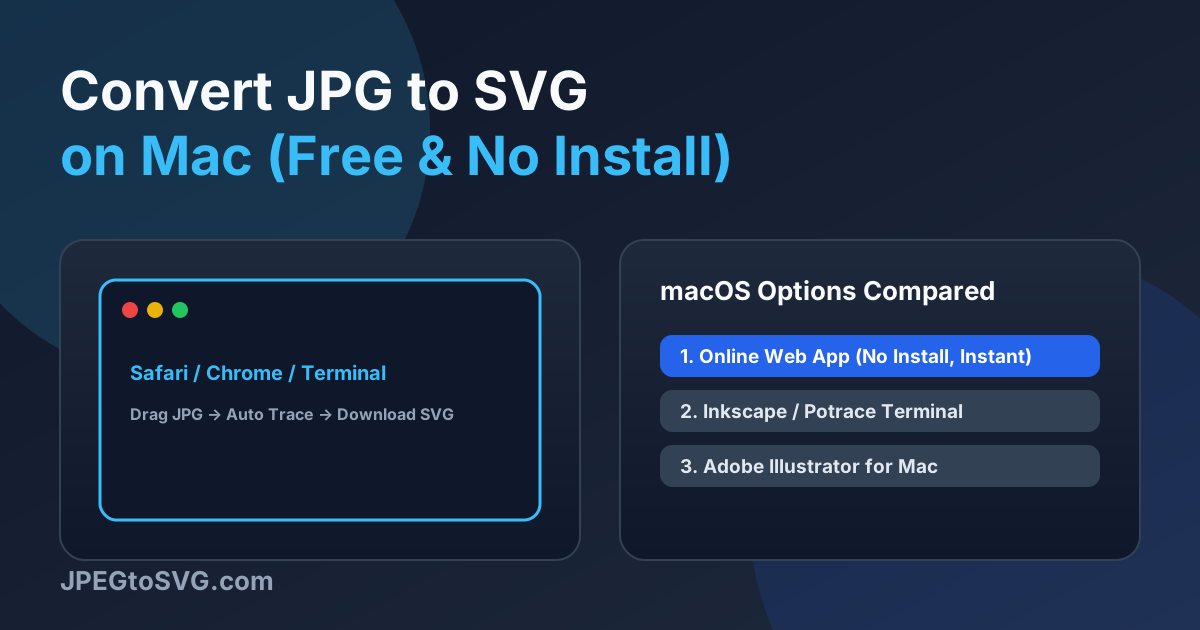
Best free ways to convert JPG to SVG on macOS
Method 1: Online browser converter (No install required): Open JPEGtoSVG.com in Safari, upload your file, and download HD vector output in seconds.
Method 2: Inkscape for Mac (Free open-source desktop app): Download Inkscape for macOS Apple Silicon / Intel and use Path > Trace Bitmap.
Method 3: Potrace CLI via Homebrew: Terminal power users can run 'brew install potrace' and vectorize images via command line.
Tips and best practices
- On Mac, drag any converted SVG file directly into Safari to view crisp vector scaling.
- Use Quick Look (Spacebar) in Finder to preview SVG vector files instantly.
FAQ
Can Preview convert JPG to SVG on Mac?
No. Preview can export images as PDF or PNG, but it cannot perform path-based vector tracing. Use an online tool or Inkscape on Mac instead.