
2026-07-13
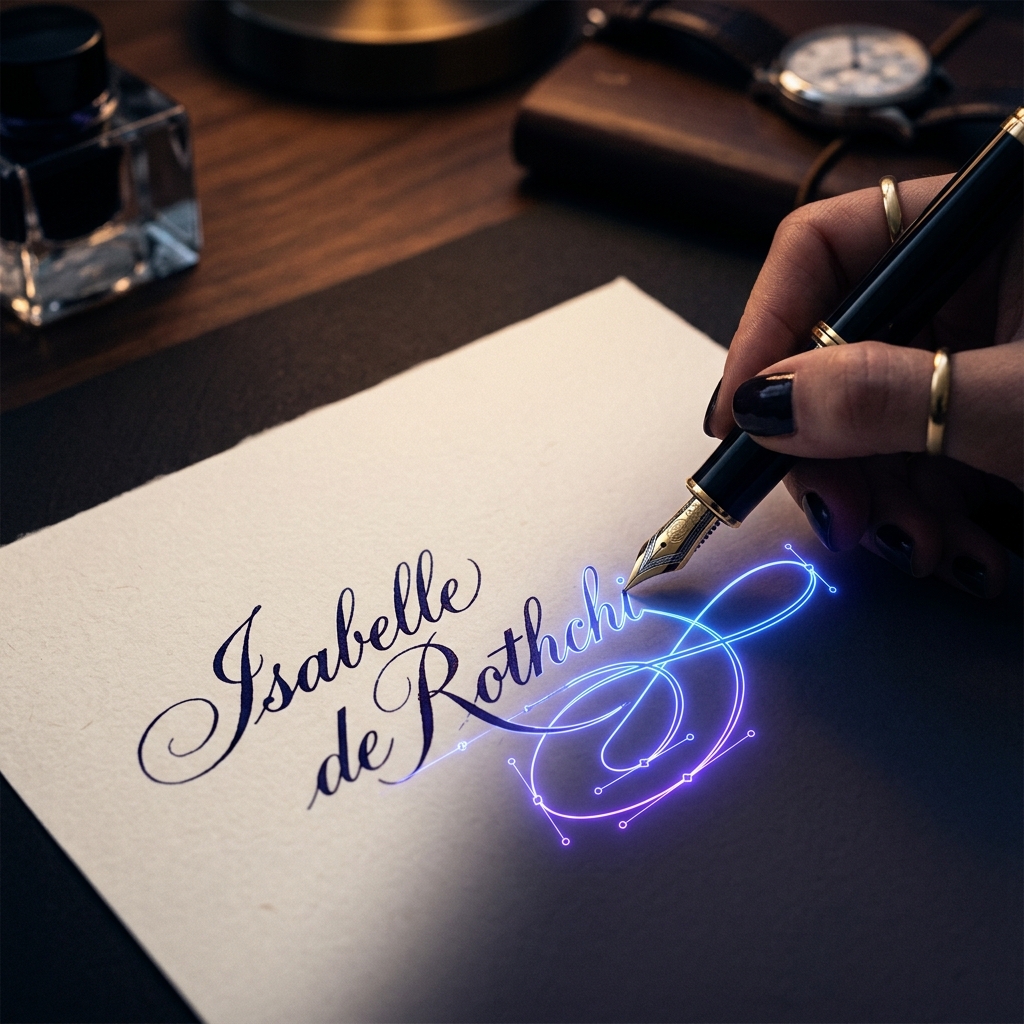
How to Convert Handwriting to SVG: Digitizing Signatures & Notes
Want to preserve a loved one's handwriting or digitize your signature? Learn how to convert handwriting and drawings into crisp SVG files for Cricut, engraving, and web use.
Written and reviewed by
Shahab Uddin, Founder & Product Lead. Shahab built JPEGtoSVG.com and reviews the site's conversion guides, presets, and SVG quality advice.
Quick Answer
- To convert handwriting or a signature to SVG, write on clean white paper using a thick black pen, take a high-contrast photo, and convert it to vector online.
- Upload the photo to JPEGtoSVG.com, choose the 'Icon' or 'Logo' preset, increase the smoothing to remove hand-shake jitter, and check 'Remove Background'.
- The result will be a clean, scalable vector path of the handwriting with no background, perfect for Cricut cutters or laser engravers.
Table of contents
Handwritten recipes, letters from grandparents, and custom signatures are highly popular for personalization projects. Whether you are engraving a recipe onto a cutting board, laser-cutting a signature in wood, or digitizing your signature for digital documents, you need a vector SVG file.
Since cameras and scanners output pixels (JPEGs or PNGs), converting the handwriting to vector paths is essential to avoid blurry edges. This step-by-step guide walks you through the entire digitization workflow.
Prepare the handwriting for tracing
The success of your vector conversion starts on paper. If you are writing a new signature or note to digitize: use a thick, black ink pen or fine-tip marker (like a Sharpie) on plain, non-lined white paper.
If you are digitizing historical handwriting: take a well-lit photo of the paper or scan it at 300 DPI. Avoid shadows, angles, or wrinkling on the paper, as these details will confuse the converter and turn into noisy stray paths.
Step-by-step conversion process on JPEGtoSVG.com
Once you have a high-contrast photo or scan of the handwriting, follow these steps to vectorize it:
1. Upload the JPEG/PNG of the handwriting to our online converter.
2. Choose the 'Icon' or 'Logo' preset, which forces a sharp black-and-white vector outline.
3. Enable 'Remove Background' so that the paper itself is ignored, leaving only the writing paths.
4. Adjust 'Smoothness' up if the ink lines look shaky, or 'Detail' down to filter out paper grain.
5. Click Convert, inspect the result, and download the transparent SVG.
Preparing handwriting for laser engraving and Cricut
For custom makers in Ohio, Texas, and other creative hubs, engraving handwriting requires specific path formats. Laser cutters (like Glowforge or xTool) and vinyl cutters (like Cricut) follow vector paths.
Make sure your SVG paths are closed. If an ink stroke is faded, the cutting plotter might treat it as two separate paths and cut down the middle of the line instead of around it. In Inkscape or Cricut Design Space, weld or merge paths together for a solid cut.
Tips and best practices
- Use high contrast: if the paper photo looks dim, use a photo editor to boost brightness and contrast until the paper is white and ink is black.
- Do not use lined paper: blue or red notebook lines will be converted into separate paths, which will require hours of manual deletion.
- Thicker lines trace better: gel pens or ballpoint pens often create double-line hollow traces; felt-tip markers create solid filled shapes.
Common mistakes to avoid
- Using a low-quality camera under yellow indoor lighting, which introduces noise and shadows that trace as gray patches.
- Forgetting to check the SVG in outline mode, which might reveal overlapping lines that can ruin a laser engraving toolpath.
- Not increasing noise reduction when converting old, faded handwriting.
Conclusion
Digitizing handwriting is a beautiful way to preserve memories or brand your business. By converting handwriting to SVG, you can scale it to any size for print, engraving, or cutting machines without losing quality.
With a high-contrast photo and the right converter presets, your personal handwriting becomes a permanent digital asset.
FAQ
How do I turn my signature into a clean SVG?
Write your signature in black ink on white paper, photograph it clearly, upload it to JPEGtoSVG.com, select 'Remove Background', convert, and download the SVG.
Can I convert handwriting from a notebook with lines?
Yes, but you will have to manually erase the vector lines using an editor like Inkscape, or crop tightly. Writing on unlined paper is highly recommended.
What is the best setting to convert handwriting to vector?
Use a solid black-and-white or high-contrast 2-color preset, enable background removal, and set moderate smoothing to eliminate pixelated edges.