
2026-07-13
How to Vectorize Line Art: Step-by-Step Guide for Artists
Learn how to turn hand-drawn sketches and digital line art into clean, crisp vector paths. The ultimate guide for illustrators and graphic artists.
Written and reviewed by
Shahab Uddin, Founder & Product Lead. Shahab built JPEGtoSVG.com and reviews the site's conversion guides, presets, and SVG quality advice.
Quick Answer
- To vectorize line art, scan or photograph your drawing under bright, uniform light, then use a vector tracer to convert the strokes to path outlines.
- Upload the image to JPEGtoSVG.com, select the 'Clean' or 'Logo' preset, increase the details to capture thin lines, and enable background removal.
- Open the downloaded SVG in a vector editor like Illustrator or Inkscape to clean up stray nodes and adjust stroke widths for final design use.
Table of contents
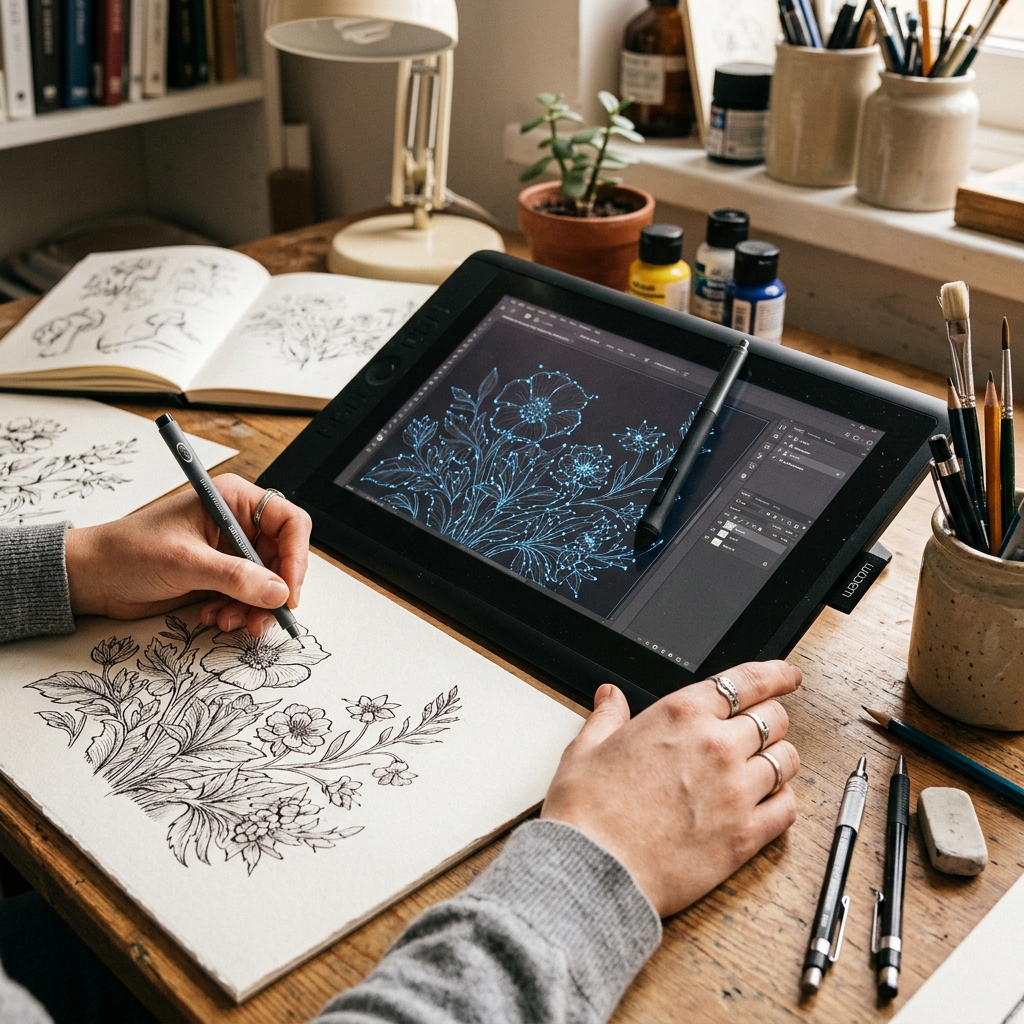
For comic book artists, illustrators, and designers, converting hand-drawn line art into digital vectors is a daily necessity. Vectorizing your line art allows you to color it digitally, scale it infinitely for posters or prints, and edit strokes without quality loss.
This guide explains how to convert physical scans and raster line drawings into clean SVG paths, preserving the character of your ink strokes while optimizing the final file size.
Scan or photograph your line art for vectorization
The clean-up process starts before vectorization. If scanning, set your scanner to Grayscale or Black & White mode at 300 to 600 DPI. High resolution is key to capturing the texture and curves of your pen lines.
If photographing, ensure your camera is perfectly parallel to the paper to prevent perspective warping, and shoot under natural sunlight. Increase the contrast in a photo editor until the background paper is pure white and the lines are solid black.
Vectorizing line art on JPEGtoSVG.com
Once your image is ready, follow these quick steps to vectorize it online for free:
1. Drag your high-contrast line art image into the converter.
2. Choose the 'Clean' or 'Logo' preset. This balances detail and path counts.
3. Adjust the 'Smoothing' parameter to smooth out pixel blocks and ink bleeding.
4. Enable 'Remove Background' to eliminate the white paper layer, keeping only the black stroke paths.
5. Click Convert, check the nodes in zoom preview, and download the SVG.
Cleaning up lines in Illustrator or Inkscape
Automatic tracing is convenient, but illustrators (from Paris to Tokyo) often need fine manual adjustments. Open the SVG in your vector editor to refine the lines:
In Inkscape: Press Ctrl+L (Simplify) to clean up unnecessary nodes, which makes the file size smaller. Use the Node Tool (F2) to snap stray vector anchors back into place.
In Illustrator: Use the Smooth Tool or simplify path options to round out sharp corners caused by scanning noise.
Tips and best practices
- Use felt-tip or brush pens. Ballpoint pens produce sketchy, multi-layered lines that trace poorly and create complex 'hollow' vectors.
- Check the 'Ignore White' checkbox to ensure only the ink paths are generated, which keeps the SVG extremely clean.
- For web use, keep details low so the page loading speed isn't bogged down by millions of coordinate points.
Common mistakes to avoid
- Vectorizing pencil sketches directly. Pencil marks have soft, gray textures that result in jagged, noisy vector paths. Ink your drawings first.
- Leaving the default color palette on, which creates hundreds of gray-scale shadow shapes instead of solid black shapes.
- Forgetting to inspect the vector outlines, resulting in overlapping shapes that make digital coloring difficult.
Conclusion
Vectorizing line art bridges traditional drawing and digital design. By converting your paper art into clean vector paths, you make your illustrations editable, scalable, and ready for any print or digital project.
Take your time to prepare high-contrast line art, use our Logo preset, and enjoy your crisp SVG.
FAQ
How do I turn a sketch into clean vector lines?
Ink the sketch with a black pen, take a high-contrast photo, upload it to JPEGtoSVG.com, select 'Logo' or 'Clean', enable 'Remove Background', and convert to SVG.
What is the best pen for creating vector-friendly line art?
Felt-tip liners, technical pens, or brush markers are best. They produce solid black, uniform lines that trace smoothly.
Why are my vectorized lines jagged?
This is usually caused by low image resolution or a low smoothing setting. Boost the scan resolution and increase smoothing in the converter.