
2026-07-13
Convert Pixel Art to SVG: Vectorizing 8-Bit Graphics
Want to scale retro pixel art without blurry anti-aliasing edges? Learn how to convert 8-bit graphics to crisp, scalable SVG files.
Written and reviewed by
Shahab Uddin, Founder & Product Lead. Shahab built JPEGtoSVG.com and reviews the site's conversion guides, presets, and SVG quality advice.
Quick Answer
- Standard vector tracing rounds off sharp pixel corners. To convert pixel art to SVG, you must preserve the square grid coordinates.
- Upload your retro image to JPEGtoSVG.com, select the 'Icon' or a specialized pixel preset, turn off smoothing (set smoothing to 0), and preserve exact pixel shapes.
- This generates an SVG where each retro pixel is represented as a crisp vector <rect> or square path block, scaling infinitely with perfect 8-bit sharpness.
Table of contents
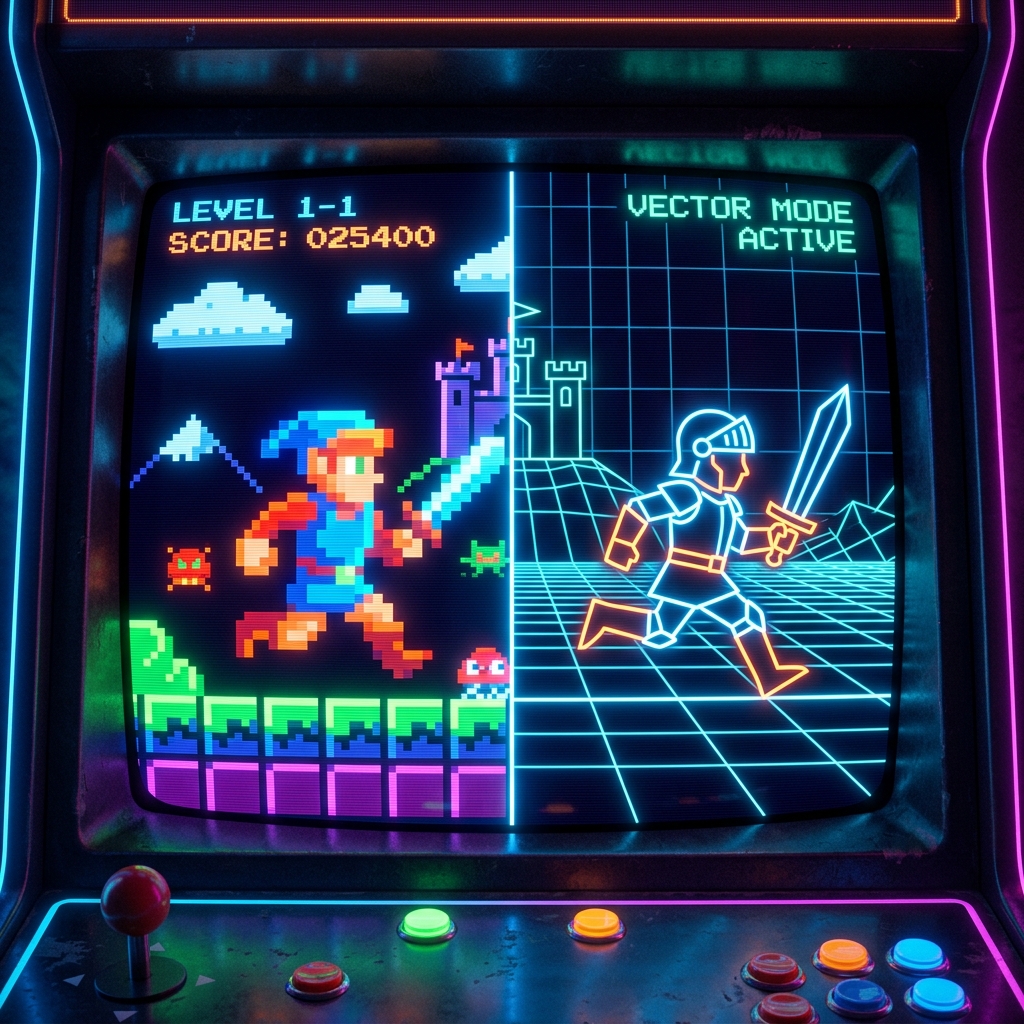
Pixel art is beloved for its retro, 8-bit arcade aesthetic. However, when you try to scale up pixel art PNGs for web design, posters, or stickers, browsers and image viewers apply anti-aliasing (bilinear filtering), turning your sharp blocks into a blurry mess.
To keep your retro art crisp at any size, you need to convert it into a vector SVG. This guide shows you how to vectorize pixel art while maintaining perfect sharp corners and exact color palettes.
The problem with standard vector tracing for pixel art
Most image-to-vector converters are designed to smooth out curves and eliminate noise. If you run a pixel art sprite through a standard 'Logo' tracer, it will round off every blocky corner, turning your retro game character into a blob.
To preserve the 8-bit look, the tracer must treat each pixel as a vector square. This requires setting the smoothing factor to zero and keeping path detail extremely tight.
Step-by-step: convert pixel art to SVG online
Follow these steps to vectorize retro graphics on JPEGtoSVG.com:
1. Upload your pixel art PNG or JPEG.
2. Choose the 'Icon' preset.
3. Set the 'Smoothing' parameter to 0. This is the critical setting that prevents rounded edges.
4. Keep color matching precise by mapping the color count to the exact palette count of your pixel sprite.
5. Enable 'Remove Background' if you want a transparent game sprite.
6. Click Convert and download your sharp, blocky SVG.
Using pixel art SVGs in modern web development
For game developers (e.g. indie studios in Tokyo or Seattle), using pixel art SVGs on websites is highly efficient. In CSS, you can also use image-rendering: pixelated; to keep raster images sharp.
However, SVGs are far superior for high-DPI displays, and they allow you to change individual pixel colors dynamically in CSS or Javascript by targetting specific paths inside the SVG code.
Tips and best practices
- Disable smoothing completely (set to 0) to avoid rounded pixel corners.
- Ensure your source image is not pre-blurred. If it is already blurry, clean up the pixels first before uploading.
- Group paths by color to make editing retro sprites easier in vector design programs.
Common mistakes to avoid
- Allowing high smoothing settings, which ruins the pixelated retro structure.
- Using too many colors on a simple sprite, which creates duplicate overlapping vector squares and increases file weight.
- Upscaling the pixel art with filtering before vectorizing, which makes the borders blurry and hard to trace.
Conclusion
Vectorizing pixel art is the ultimate way to adapt 8-bit retro designs for modern screens, print projects, and custom merch. By removing smoothing and matching colors exactly, you preserve the beloved blocky aesthetic in a crisp, scalable file.
Upload your retro sprites, turn off smoothing, and download sharp vector files.
FAQ
How do I convert pixel art to vector without losing sharp edges?
Select the Icon preset, set the smoothing value to 0 in the converter, and keep detail set to maximum to capture every square corner.
Can I change colors of a pixel art SVG later?
Yes. Open the SVG file, select the square paths, and edit their hex color codes. In code, you can use CSS styles to recolor paths dynamically.
Does SVG support retro pixel grids?
Yes, by representing the grid as individual mathematical squares, the SVG keeps the retro grid look sharp at 1000% zoom.