
2026-07-13
Convert Image to SVG for CNC: 2026 Router & Carving Guide
CNC routers require clean vector lines. Learn how to convert any logo or image to an optimized SVG with closed paths for carving wood, acrylic, and metal.
Written and reviewed by
Shahab Uddin, Founder & Product Lead. Shahab built JPEGtoSVG.com and reviews the site's conversion guides, presets, and SVG quality advice.
Quick Answer
- CNC routers need SVG files with clean, closed, non-overlapping vector paths to calculate toolpaths (V-carve, pocket, or profile cuts).
- Convert your image to SVG using the 'Logo' or 'Cricut' preset to minimize path complexity, and use the 'Remove Background' option.
- Import the SVG into CAM software (like Easel, Carveco, VCarve, or Fusion 360) and verify that all paths are closed vectors before sending g-code to the CNC machine.
Table of contents
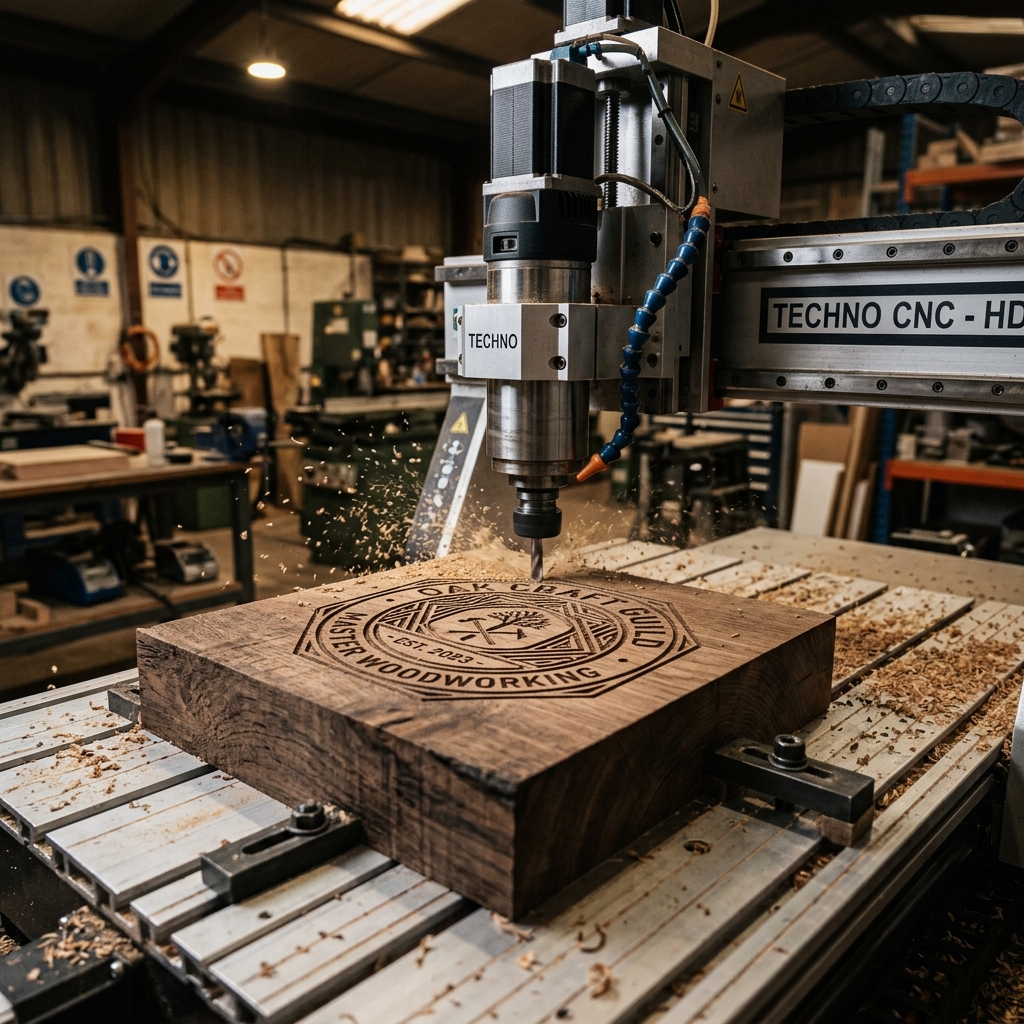
CNC (Computer Numerical Control) routers and wood carving machines require vectors to dictate where the router bit will travel. While you can load images into some modern CAM programs, they often struggle with noisy pixel borders, resulting in jagged cuts or broken bits.
This guide explains how woodworkers, makerspaces, and fabricators (particularly in craft regions like Oregon or Georgia) can convert JPEG/PNG designs into clean, toolpath-ready SVG files.
Why CNC machines require vectors instead of pixels
A JPEG or PNG image consists of a grid of color pixels. A CNC router doesn't know what to do with a pixel — it needs coordinate instructions (X, Y, and Z axes) to move its spindle.
An SVG contains coordinate geometry that CAM software translates into g-code. A clean SVG ensures your V-carve bits move in smooth, continuous lines, resulting in beautiful wood finishes and avoiding heavy router chatter.
Step-by-step: convert image to CNC SVG online
Follow this workflow to create a vector file that imports perfectly into Easel or VCarve:
1. Prepare a high-contrast, black-and-white silhouette of your logo or graphic.
2. Upload it to JPEGtoSVG.com.
3. Select the 'Logo' preset and reduce the color count to 2 (black and white).
4. Enable 'Remove Background' so the white space is empty, allowing the software to identify the engraving pocket.
5. Click Convert, check the output in our preview panel, and download the SVG.
Fixing common CNC SVG import errors
Double lines and open vectors are the bane of CNC operators. If your vector has duplicate overlapping paths, the router bit will cut the same spot twice, which can burn wood or break delicate carving bits.
Before carving: open the SVG in Inkscape, select all, click Path > Simplify to reduce nodes, and use the 'Join selected nodes' tool to ensure every outline is a closed loop. Open vectors will cause V-carving software to throw errors or ignore shapes.
Tips and best practices
- Always design black-and-white silhouettes for V-carving. Multi-color artwork requires complex depth programming that is hard to manage.
- Keep path coordinates simple. Excess vector nodes will make your CNC hesitate or jerk at every coordinate step.
- Use the 'Ignore White' setting to export only the black carving path, avoiding duplicate square outlines.
Common mistakes to avoid
- Using low-resolution JPEGs with heavy compression, which creates rough, stair-stepped vector edges that ruin the wood surface.
- Forgetting to check for tiny, microscopic vector circles or specks, which the CNC will attempt to drill, wasting time.
- Exporting nested layers, which can cause the CAM software to calculate pocket cuts inside pocket cuts.
Conclusion
Converting raster images to clean SVG paths is the first step in wood carving and machining. By removing backgrounds, simplifying nodes, and ensuring closed contours, you ensure clean toolpaths and high-quality woodwork.
Convert your design, verify the paths in your CAM preview, and let the router do its magic.
FAQ
Can I use SVG files directly on a CNC router?
Yes, software like Easel, VCarve, and Carveco natively import SVG files to calculate toolpaths and export G-code to the router.
Why does my CNC software say 'open vector' when I import an SVG?
This means one or more paths have a gap in their outline. In your vector editor, snap the end nodes together and join them to close the loop.
What is the best format for CNC router engraving?
SVG is the industry standard for 2D and 2.5D carving due to its lightweight XML structure and compatibility with all major CAM programs.